Adding a Recovery Success Command
Perform the following steps to add a recovery command to execute after a successful recovery.
To Add a Recovery Success Command
- Using CygNet Explorer, click on the RSM in the service hierarchy.
- In the RSM pane, right-click on the service for which you want to configure recovery and click Properties.
- Click the Automatic Service Recovery page.
- Configure the desired recovery stage(s) as described in Configuring a Recovery Stage.
- Click Edit next to the Command to execute after successful recovery field to add or edit a recovery success command.
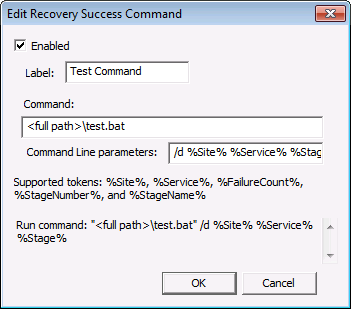
- Check Enabled to enable the command. If this option is not selected the command will not be execute.
- Type a descriptive Label for the command.
- Add the desired Command.
- Add any Command-Line Parameters and supported text tokens required for the command.
- Click OK.
Note: An area at the bottom of the dialog box will show the command and parameters that will run for this command.
|
Edit Recovery Success Command Dialog Box |
| Property | Description |
|---|---|
|
Enabled |
Click to enable the recovery success command. |
|
Label |
Type an appropriate label for the command. |
|
Command |
Type a command to execute after a successful recovery (such as an .exe or .bat). Note: Specify the full path to the .exe or .bat file. |
|
Command line parameters |
Type any required command-line parameters or text tokens. |
|
Supported tokens |
The following text tokens can be appended to the command line, if desired:
|

